

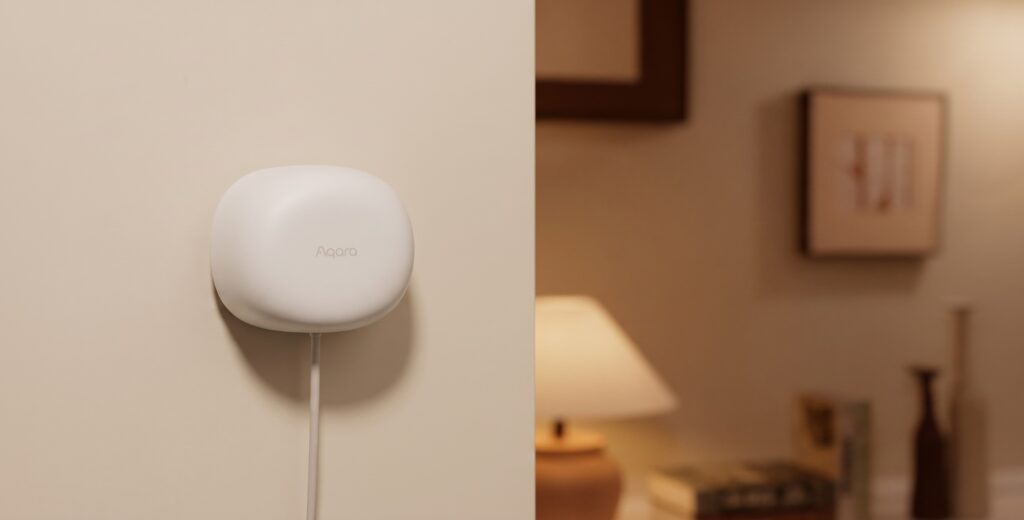
The Aqara FP1E can keep a room light on while someone sits at a desk, where a motion-only sensor may stop seeing them. It uses mmWave radar for presence detection and Zigbee for communication. With Zigbee2MQTT, its readings and supported controls reach Home Assistant through your own coordinator and MQTT broker.
This guide takes you from pairing to checking the exposed controls, adjusting the detection boundary, and building room-occupancy automations. No Aqara hub or account is needed for this integration path. You do need a working Zigbee2MQTT network and continuous USB power at the mounting position.
FP1E vs FP2 — Which Presence Sensor for Local Setups?
Both models detect presence, but the FP1E gives you one occupied/empty area while the FP2 can distinguish zones within a room. Neither removes the need to check coverage in the actual space.
Protocol Difference
The FP1E joins a Zigbee network. The FP2 connects over Wi-Fi and can integrate locally with Home Assistant through HomeKit Device, formerly called HomeKit Controller. Aqara’s FP2 product page documents that route; treat references to future Matter support separately from a working integration available on your firmware.
Feature Comparison
| Feature | FP1E | FP2 |
|---|---|---|
| Communication | Zigbee 3.0 | Wi-Fi; documented HA route is HomeKit Device |
| Detection areas | One presence area | Up to 30 configured zones |
| Range | Up to 6 m radial range; placement affects coverage | Longer room coverage; see the FP2 mounting guide |
| Sensitivity | Low, medium, high plus adaptive control | Configured in Aqara Home |
| Learning/interference controls | Spatial learning and adaptive/interference controls exposed by Z2M | Its own placement and zone calibration workflow |
| Power | 5 V USB-A power lead | USB-C input |
| Illuminance | No light sensor exposed by Z2M | Built-in light sensor |
| Fall detection | No | Separate ceiling-mounted mode; not the ordinary zone-presence mode |
| Budget | Often less expensive; compare current regional prices | Typically costs more; no fixed price assumed |
| Local HA integration | Zigbee2MQTT + MQTT | HomeKit Device over Wi-Fi; no Z2M pairing |
When to Choose the FP1E
Choose the FP1E for one room-level presence signal on an existing Zigbee network. A bedroom, office, or bathroom can suit it, provided you can supply power and place the sensor so that it covers the occupied area without looking into an adjacent room.
Choose the FP2 if you need separate couch, desk, or doorway zones or its additional light sensor. Fall detection requires a different mounting mode and should not be assumed to appear as an ordinary Home Assistant zone entity. The FP2 setup guide covers its own onboarding path.
What You’ll Need
- A current Zigbee2MQTT release. Confirm that its device database includes FP1E. The model launched in 2024; an old guide’s claimed minimum of version 1.36 is not a reliable support check.
- A supported Zigbee coordinator. A ZBDongle-P uses a TI CC2652P radio; a ZBDongle-E uses a Silicon Labs EFR32 radio. Match your adapter settings to the actual stick.
- 5 V, 1 A USB power. The FP1E has a USB-A power lead, not the FP2’s USB-C input. Position it with the supplied lead’s reach in mind.
- Home Assistant MQTT discovery. The broker must be connected to both HA and Zigbee2MQTT, with discovery enabled.
Zigbee2MQTT lists OTA support for the FP1E. Check its OTA panel for an image applicable to your device; support for updates does not guarantee a newer image is currently available. Downloading firmware needs network access, while transferring the image to the sensor uses Zigbee.
Pairing the FP1E with Zigbee2MQTT
Enable Join Mode in Z2M
Open the Zigbee2MQTT frontend using your configured address or the Home Assistant sidebar. Enable Permit join and watch its remaining join window. You can restrict the joining path to the coordinator or a selected router from the dropdown. Close it after pairing.
FP1E Pairing Procedure
- Connect the FP1E to a suitable USB power source.
- Hold its reset button for about five seconds, releasing when the blue indicator starts blinking.
- Wait for Zigbee2MQTT to detect the device and finish its interview.
- If it does not join, confirm the join window is open and try a short button press or repeat the pairing attempt.
The button-and-LED pairing sequence is documented in the FP1E device page. Judge success by the completed interview, rather than an assumed orange LED stage or a fixed number of seconds.
Confirming the Device in Z2M
The device should be recognised as an Aqara FP1E presence sensor. Open Exposes, confirm that presence and the range/sensitivity controls appear, and assign a useful friendly name such as fp1e_office. Home Assistant should then list it under the MQTT integration. Entity IDs vary with your naming and discovery settings.
Troubleshooting: Device Not Found or Falls Off Network
- No join: check power and permit-join, then retry near a known-good coordinator/router.
- Interview failure: inspect the device log, improve the radio path, and let the interview finish before moving the sensor.
- Unsupported model or missing controls: update Zigbee2MQTT and check the current FP1E definition; repeatedly resetting cannot add support to an older converter.
- Disconnects after moving: check signal and nearby routers. USB power alone does not establish whether a device routes Zigbee traffic; use the device type and network information in your own Z2M installation.
- Presence remains on in an empty room: first check placement, fans, moving objects, reflections, and the range boundary before treating it as a connection fault.
Entities and Exposed Sensors in Home Assistant
The following are Zigbee2MQTT property names. HA presents them as entities or controls, with names that depend on discovery. Read-only diagnostics may be disabled by default.
| Property | Kind | Meaning or accepted value |
|---|---|---|
presence |
Binary reading | true / false; use the HA binary sensor for occupancy |
movement |
Enum reading | movement, no_movement, no_presence; also unknown_0, unknown_1 |
target_distance |
Numeric reading | Estimated target distance in metres |
motion_sensitivity |
Select | low, medium, high |
detection_range |
Number | Maximum monitored range, 0–6 m |
device_temperature |
Diagnostic reading | Internal device temperature |
power_outage_count |
Diagnostic reading | Power interruption count |
spatial_learning |
Command enum | Start Learning |
ai_sensitivity_adaptive |
On/off control | ON / OFF |
ai_interference_source_selfidentification |
On/off control | ON / OFF |
restart_device |
Command enum | Restart Device |
identify |
Command enum | identify |
presence is the useful main signal for an occupied-room light. A stationary occupant can report no_movement while presence stays on. Do not interpret an unknown movement value as an empty room. Movement is useful as an extra condition for an activity scene or a sedentary reminder, rather than a replacement for presence.
target_distance helps you check the boundary while moving through the room. It is an estimate, not a precise floor-plan measurement. Internal temperature and the outage count help with device diagnostics; they are not room-temperature or occupancy measurements.
Configuring Sensitivity and Detection Range
Adjusting Motion Sensitivity
Begin with medium sensitivity, then test both empty-room behaviour and a still occupant at the intended seating position. Lower sensitivity may reduce unwanted detection, but it can also make a distant or very still person harder to detect. Change one control at a time and keep notes on which condition you are fixing.
The adaptive sensitivity and interference-identification controls are product features; their names include “AI” because that is how the device exposes them. They are worth trying with fan or airflow interference, but they do not guarantee that every pet, curtain, or reflection will be ignored.
Setting Detection Range
Set detection_range to cover the intended room, not the largest possible number. In a room about four metres deep, start near that boundary and test the farthest seat as well as the doorway. A shorter range can exclude movement farther away, but it is not a shaped exclusion zone.
Aqara’s FP1E manual gives a maximum of six metres under ideal conditions. It recommends checking the boundary with one person moving slowly toward the sensor; multiple people can make the displayed reference distance harder to interpret.
Spatial Learning Calibration
Run spatial learning after installing the sensor or changing the room layout. Clear people from the monitored space, send Start Learning, and allow about 30 seconds for the initial learning procedure, as the manual specifies. Then test the empty room before testing seated presence.
The sensor continues adapting during use. If false presence returns, look for the physical cause and rerun learning in an empty room; a claim that the initial procedure takes 10–15 minutes is not the documented calibration sequence.
MQTT-Based Configuration (Power Users)
These are complete Developer Tools → Actions examples for mqtt.publish. The payload is a JSON string, and the topic uses the Z2M base topic and friendly name. Change both if your installation uses different names. Keep spatial learning as a manual setup step rather than scheduling it while people may be present.
action: mqtt.publish
data:
  topic: zigbee2mqtt/fp1e_office/set
  payload: '{"motion_sensitivity":"high"}'
retain: falseaction: mqtt.publish
data:
topic: zigbee2mqtt/fp1e_office/set
payload: '{"detection_range":4}'
retain: falseaction: mqtt.publish
data:
topic: zigbee2mqtt/fp1e_office/set
payload: '{"spatial_learning":"Start Learning"}'
retain: falseThe other controls use their documented strings, including ON/OFF for the two adaptive/interference switches. Confirm a setting in the Z2M controls after sending it; a successful MQTT publish only means the broker accepted the message.
Home Assistant Automations with the FP1E
Replace the example presence and light entity IDs with the ones from your MQTT device page. Each complete automation belongs in its own Edit in YAML view. In automations.yaml, use separate list items headed by - alias:.
Basic Presence-Triggered Light
Start with an on-only automation so that you can test coverage without an off timer complicating the result.
alias: Office light - presence on
triggers:
  - trigger: state
    entity_id: binary_sensor.fp1e_office_presence
    from: "off"
    to: "on"
conditions: []
actions:
  - action: light.turn_on
    target:
      entity_id: light.office_ceiling
mode: single
Occupancy Timeout — Lights Off After N Minutes
Use a second automation to turn the light off only after presence has stayed off continuously. Five minutes is a starting choice for this office example, not a sensor specification.
alias: Office light - vacancy delay
triggers:
  - trigger: state
    entity_id: binary_sensor.fp1e_office_presence
    from: "on"
    to: "off"
    for:
      minutes: 5
conditions: []
actions:
  - action: light.turn_off
    target:
      entity_id: light.office_ceiling
mode: single
A return to presence before five minutes cancels that wait. State-trigger for periods reset when HA restarts or automations reload, so this is not a persistent timer. Test sitting still with the lights on before shortening the delay.
Room-Presence Helper Using input_boolean
If several automations need the same vacancy delay, create a Toggle helper called input_boolean.office_occupied. The following two separate automations set it from presence and clear it after five minutes of absence. They belong in automations.yaml as the list shown, rather than two duplicate alias mappings in one editor.
- alias: Office - mark occupied
  triggers:
    - trigger: state
      entity_id: binary_sensor.fp1e_office_presence
      to: "on"
  conditions: []
  actions:
    - action: input_boolean.turn_on
      target:
        entity_id: input_boolean.office_occupied
  mode: single

- alias: Office - mark vacant
  triggers:
    - trigger: state
      entity_id: binary_sensor.fp1e_office_presence
      to: "off"
      for:
        minutes: 5
  conditions: []
  actions:
    - action: input_boolean.turn_off
      target:
        entity_id: input_boolean.office_occupied
  mode: single
Use the helper for a desk lamp, ventilation, or a do-not-disturb indication. These examples update it on sensor transitions; a restored helper state can be stale after HA restarts. Check it at startup, or add a startup reconciliation automation suited to your vacancy policy before using it for anything consequential.
Multi-Room Presence
For several rooms, use one helper per room and the same delay policy where appropriate. A Binary sensor group with “All entities” disabled can combine the occupied helpers into an “any room occupied” signal. Leave individual room signals available so that a downstairs light does not depend on someone sitting upstairs.
This only describes the rooms covered by those sensors. An unmonitored room, a person outside the detection cone, or an unavailable sensor can make a whole-home label misleading. Use the aggregate as an automation convenience, rather than proof that the house is empty.
Privacy and Local-Only Operation
The live reading path is FP1E → Zigbee coordinator → Zigbee2MQTT → local MQTT broker → Home Assistant. The FP1E has no Wi-Fi connection, and this pairing path needs no Aqara account. Keep the broker and HA accessible to each other if you isolate their hosts on different networks.
Local presence automations can continue without an Aqara cloud service. Your chosen actions may still use a cloud integration, and software or OTA image downloads may need internet access. Aqara hub automations can also be local; removing its hub gives you control of the integration rather than proving that every hub-based action uses the cloud.
After setup
Leave the sensor in its final position, run learning in the empty room, and test the actual desk, sofa, or bed you want it to cover. Check both false presence when the room is empty and unwanted vacancy while someone sits still. Once those work, tune the off delay and add other room automations.
- Aqara FP2 Presence Sensor — Home Assistant Setup for separate zones and a different local integration.
- Aqara P1 Motion Sensor — Zigbee2MQTT + Home Assistant for motion-triggered entry and corridor lighting.
- Xiaomi / Aqara Zigbee Devices in Home Assistant via Zigbee2MQTT for the network setup.