

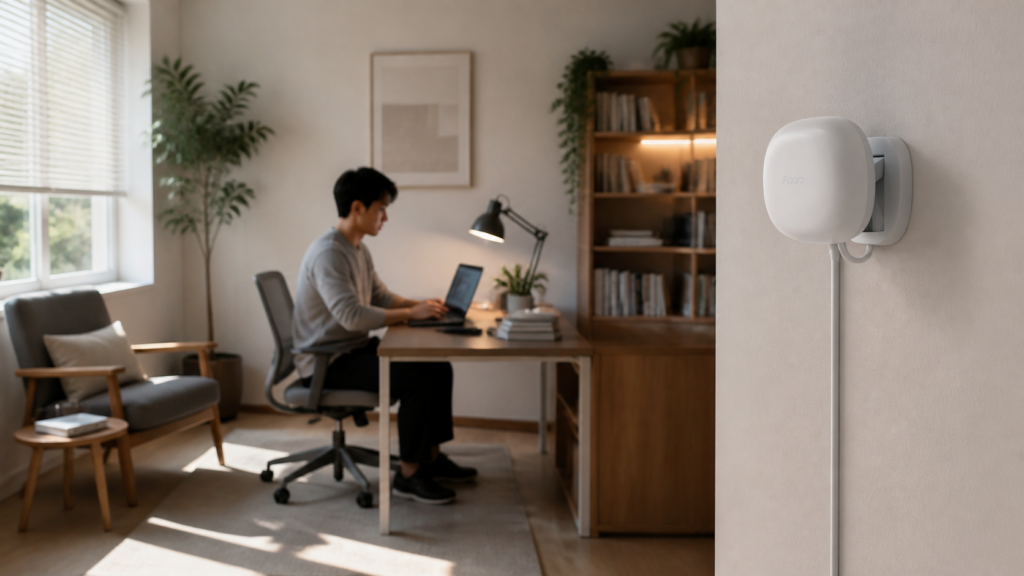
Aqara FP1 (RTCZCGQ11LM) with Zigbee2MQTT and Home Assistant
The Aqara FP1 is a mmWave presence sensor — which means it detects people who are sitting still, not just moving ones. That’s the distinction that matters here. A PIR sensor will call your living room empty 90 seconds after you stop walking around. The FP1 won’t. It sees you whether you’re reading, working at a desk, or just existing in the room.
The FP1 is discontinued as a retail product (the FP1E is its replacement), but it’s widely available secondhand for $20–30 USD and pairs directly to Zigbee2MQTT with no Aqara hub or cloud account at any point. If you already have a Z2M setup, this sensor costs less than a dinner out and solves the “why did the lights turn off while I was sitting here” problem.
Here’s how to set it up, and what to watch for.
Before you start — check your Zigbee channel
This is the most common reason the FP1 fails to work, and it’s entirely preventable. The sensor is incompatible with Zigbee channels 21, 22, 23, and 24. If your coordinator is on any of those channels, the FP1 will not join, or will join but behave erratically.
Check your current channel in the Z2M web UI: go to Settings > Coordinator > Channel. If you’re on 21-24, you’ll need to change it before pairing the FP1.
Channels 11–20 and 25 are all fine. Channel 15 and 20 are popular defaults that work without issue.
Changing the channel triggers a full network rejoin for all your devices, which takes a few minutes. Do this before you bring the FP1 into your setup — not after you’ve spent 30 minutes wondering why it won’t pair.
Pairing the FP1 to Zigbee2MQTT
Prerequisites:
– Z2M 1.30.0 or higher (region/zone support was added in this release)
– A CC2652-based Zigbee coordinator is strongly recommended. The Sonoff Zigbee Dongle Plus and the SLZB-06 both work well. If you’re using a ConbeeIII, some users have reported interview failures specific to this device (Z2M issue #23526) — switching adapters resolved it.
The LED boot diagnostic:
Before you try to pair, check the boot state. Power on the FP1 and watch the LED. You want to see two flashes. If you only see one flash, the sensor is in a stuck state and will not pair cleanly — and may end up permanently reporting “presence detected” once it does pair.
To force the correct boot state: hold the reset button for 12 seconds after power-on. Keep holding until you see two LED flashes. Release. The sensor is now ready.
This two-flash confirmation is also the fix for the “stuck on detected” bug. I’ll come back to that in the troubleshooting section.
Pairing:
- Confirm your coordinator is not on channels 21-24
- Power on the FP1, confirm two-flash LED boot
- Enable pairing mode in Z2M (Permit join)
- Hold the button on the FP1 for about 5 seconds until the LED flashes rapidly
- Watch Z2M logs — the device should interview within 30-60 seconds
During pairing you’ll likely see log entries like “Unknown key 0x010c = 3”. These are cosmetic warnings from unhandled attribute reports. They don’t affect functionality, and the device operates correctly despite them (tracked in Z2M issues #16724 and #17643). I’d seen these before on other Aqara devices and spent time chasing them — don’t bother.
What you get in Home Assistant
Once paired, the FP1 shows up under the Z2M integration with these entities:
| Entity | Type | Notes |
|---|---|---|
binary_sensor.presence |
Binary | On = someone detected; the main sensor you'll use |
sensor.presence_event |
State | Directional events: enter, leave, left_enter, right_leave, right_enter, left_leave, approach, away |
sensor.device_temperature |
Sensor | Chip temperature in °C — not ambient room temp |
sensor.power_outage_count |
Sensor | Counts power interruptions since pairing |
select.monitoring_mode |
Select | undirected or left_right |
select.approach_distance |
Select | far / medium / near |
select.motion_sensitivity |
Select | low / medium / high |
The device_temperature entity is a common source of confusion — it reflects the mmWave chip temperature, which runs warm by design. Don’t wire it into a room temperature dashboard; it’s not measuring the air.
No hub is required for any of this. The FP1 is talking directly to your Z2M coordinator.
Configuring zones and regions
This is where the FP1 earns its keep beyond a basic presence sensor. You can carve the detection area into up to 10 named regions, each mapped to specific cells in the sensor’s 7×4 detection grid.
How the grid works:
The FP1’s field of view maps to a 7-column by 4-row grid. The Y-axis represents depth — Y1 is closest to the sensor, Y7 is furthest. The X-axis is left-right from the sensor’s perspective — X1 is left, X4 is right. So a zone at Y1-Y2, X2-X3 would be a roughly 1-2 meter area, centered in front of the sensor.
Regions can overlap across zones freely. A zone can belong to multiple regions.
Setting up a region via Z2M:
Go to Z2M web UI > the device page > Exposes tab. Look for region_upsert. Set:
– region_id: a number 1-10 (your region’s identifier)
– Zone coordinates: the list of grid cells to include
As an example, if I want a “desk” region covering the area 1-3 meters out, center of frame, I’d set Y1-Y2, X2-X3.
To remove a region, use region_delete with the region ID.
Region events in Home Assistant:
Once configured, the sensor publishes events in the format region_<ID>_enter, region_<ID>_leave, region_<ID>_occupied, and region_<ID>_unoccupied. These come through on the presence_event entity.
Automation trigger example for region 1:
trigger:
  - platform: state
    entity_id: sensor.fp1_presence_event
    to: "region_1_occupied"
One caveat: region detection is flagged as experimental in the Z2M docs, and bugs are expected. For basic whole-room presence the binary_sensor.presence entity is more reliable. Regions are worth setting up for zone-specific automations, but don’t depend on them for critical functions.
Also worth noting: region configuration is only available via Z2M. ZHA does not support zone setup for this device.
Monitoring mode and sensitivity
Three settings let you tune the FP1’s behavior without re-pairing:
monitoring_mode:
– undirected — standard presence detection plus approach/away events. Use this for most setups.
– left_right — replaces approach/away with left/right enter/leave events. Useful for corridor or doorway detection where you want to know which direction someone is moving.
approach_distance: Sets the effective detection range — far, medium, or near. If the sensor is picking up presence in an adjacent room through a thin wall, switching from far to medium often resolves it.
motion_sensitivity: Start at medium. Lower to low if you’re getting false positives (ceiling fans are a common culprit). High is occasionally useful in a large room where the sensor is struggling to detect someone at the far end.
Automation examples
Home Assistant automations have one trigger block and one action block each, so the “turn on when present, turn off when empty” pattern is two separate automations, not one. The examples below are split that way so you can paste them as-is.
Basic presence: light follows occupancy
alias: Office presence light on
trigger:
  - platform: state
    entity_id: binary_sensor.fp1_presence
    to: "on"
action:
  - service: light.turn_on
    target:
      entity_id: light.office_main
alias: Office presence light off
trigger:
  - platform: state
    entity_id: binary_sensor.fp1_presence
    to: "off"
    for:
      minutes: 2
action:
  - service: light.turn_off
    target:
      entity_id: light.office_main
Zone-based: desk light from region 1
alias: Desk light on
trigger:
  - platform: state
    entity_id: sensor.fp1_presence_event
    to: "region_1_occupied"
action:
  - service: light.turn_on
    target:
      entity_id: light.desk_lamp
alias: Desk light off
trigger:
  - platform: state
    entity_id: sensor.fp1_presence_event
    to: "region_1_unoccupied"
action:
  - service: light.turn_off
    target:
      entity_id: light.desk_lamp
Directional: arrived home trigger (left_right mode)
With monitoring_mode set to left_right, use left_enter or right_enter to trigger an “arrived” scene when someone enters a specific side of the room:
alias: Welcome home from left
trigger:
  - platform: state
    entity_id: sensor.fp1_presence_event
    to: "left_enter"
action:
  - service: scene.turn_on
    target:
      entity_id: scene.welcome_home
FP1 vs FP1E — which should you buy?
If you’re choosing between the two for a new purchase, the short answer is: go with the FP1E. It’s the current retail product, costs less new, and has identical Z2M support. The FP1 is discontinued and only available secondhand.
If you already own an FP1 or found one cheap, it’s not inferior — it works exactly as well with Z2M and has the same zone system.
| FP1 (RTCZCGQ11LM) | FP1E (RTCZCGQ13LM) | |
|---|---|---|
| Power | USB (always-on) | USB (always-on) |
| Protocol | Zigbee | Zigbee |
| Z2M pairing | Direct (no hub) | Direct (no hub) |
| Zone/region support | Yes (Z2M 1.30.0+) | Yes (Z2M 1.30.0+) |
| ZHA zone support | No | No |
| Hub required | No | No |
| Availability | Secondhand only | Current retail |
For the full FP1E setup guide, see my Aqara FP1E presence sensor guide.
For a comparison between the FP2 and FP300 (the higher-end sensors), see my FP2 vs FP300 comparison.
Troubleshooting
Sensor stuck reporting “presence detected”
This is the most common FP1 complaint. The cause is a bad boot state after power-on. Fix: hold the reset button for 12 seconds after powering the device on. Watch for two LED flashes. Release. The sensor should now report correctly.
If it keeps happening after power cycles, the fix is the same — you just need to run the 12-second hold every time the sensor loses and regains power until it boots cleanly. Power-cycling via a smart plug with a 5-second off period before the hold helps make this reliable.
“has no attribute ‘presence'” error in HA
This happens when the device was first paired on an old Z2M version before full RTCZCGQ11LM support landed. Fix: remove the device from Z2M, factory reset it (hold button 10+ seconds until LED blinks three times), then re-pair on Z2M 1.30.0 or higher. Tracked in Z2M issue #21357.
FP1 won’t pair at all
First check: what channel is your coordinator on? If it’s 21-24, that’s your answer. Change to channel 15 or 20, let the network rejoin, then try pairing again.
Second check: did you get two LED flashes on boot? Single flash means the sensor is not ready. Run the 12-second button hold.
ConbeeIII interview failure
If you’re using a ConbeeIII and the Z2M interview hangs or fails, this is a known issue (#23526) specific to this adapter with this device. The cleanest fix is switching to a CC2652-based adapter. The Sonoff Zigbee Dongle Plus is the most commonly used alternative.
“Unknown key 0x010c = 3” in Z2M logs
Cosmetic. Ignore. The FP1 sends some attribute reports that Z2M doesn’t have handlers for yet. Functionality is unaffected.
The FP1 is old enough that most of the rough edges in Z2M support are well-documented and have known fixes. The channel limitation and the boot-state diagnostic are the two things that trip people up most often — handle those upfront and the rest of the setup is about as routine as any other Aqara Zigbee device.
If you’re running the FP1 hub-free and want to keep your whole Aqara/Xiaomi setup off the cloud, see my Aqara Hub E1 local integration guide for the hub-based path if you need one, or check the broader Aqara Zigbee devices without a hub guide for the full coordinator-only approach.